Outline view
The outline view displays the mind map as a hierarchical list. This view helps clarify the structure and makes it easier to scan and navigate larger mind maps.
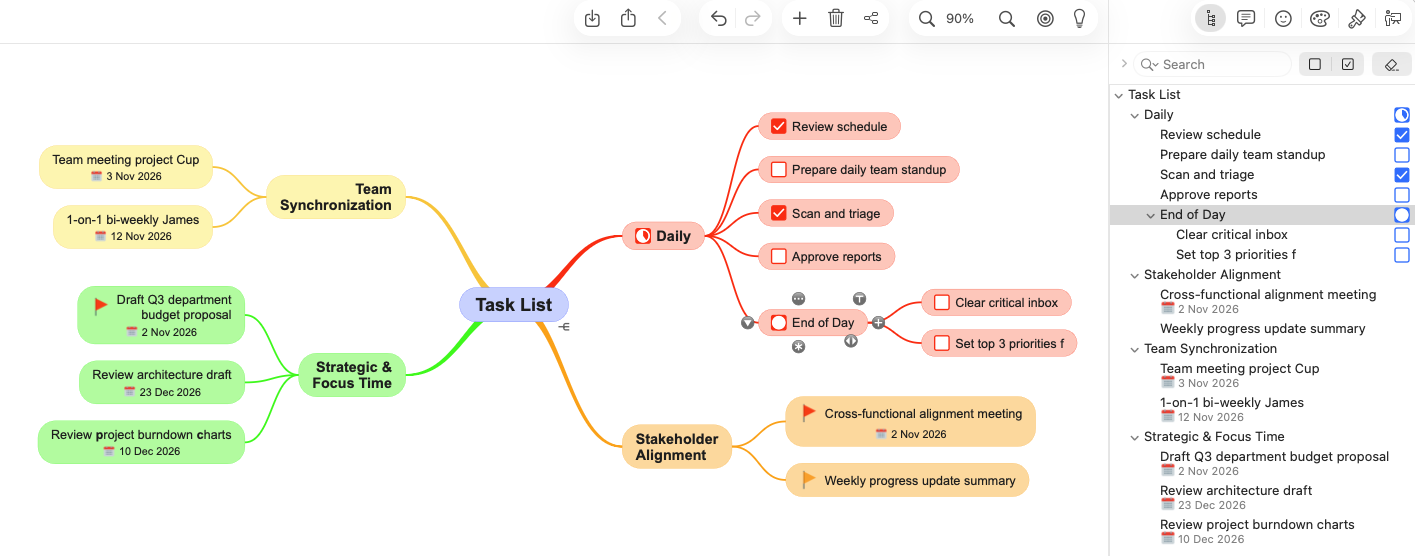
Mac and Windows: Click the outline button  in the inspector (right side of the screen). Or via the main menu – “View” – “Outline”
iPad/iPhone and Android: Use the outline button or select "Outline" from the menu.
Use drag and drop to reorder topics. If the mind map has an auto layout, the topics in the mind map will be moved as well. In free form layout this will only change the topic order.
Use the arrow buttons to collapse or expand the outline so you can see only what is relevant to you.
Search and Filter topics
Filter your mind map to create To Do list, or show only topics with a specific icon. Use the expand arrow next to search to show all filters.- Clear Filters
Use the button to clear all filters and to clear "Search".
 - Search Text
Enter text to search all topics, notes or labels for that specific text. All other topics/labels will be faded, so the search results stand out.
On phones use the menu - Search to search for text. - Filter by checkbox
Use the unchecked and checked buttons to show your mind map as a Check List, To Do List or Done List
 - Filter by date
Displays only topics that have a date, sorted by date. You can select all dates, today, or use "date after" or "date before". - Filter by icon (not on phones)
Select the icon button to select a specific icon, such as a red flag, to show only topics with that icon.
 - Combine Filters
You can use multiple filters at the same time and also combine those filters with "Search" (not on phones). For example, search for "approve" and combine this with the filter "unchecked checkbox" quickly shows you what you still need to approve.
Tip! Use the shortcut Command+F or Control+F. This opens the outline and you can start typing your text without mouse input.